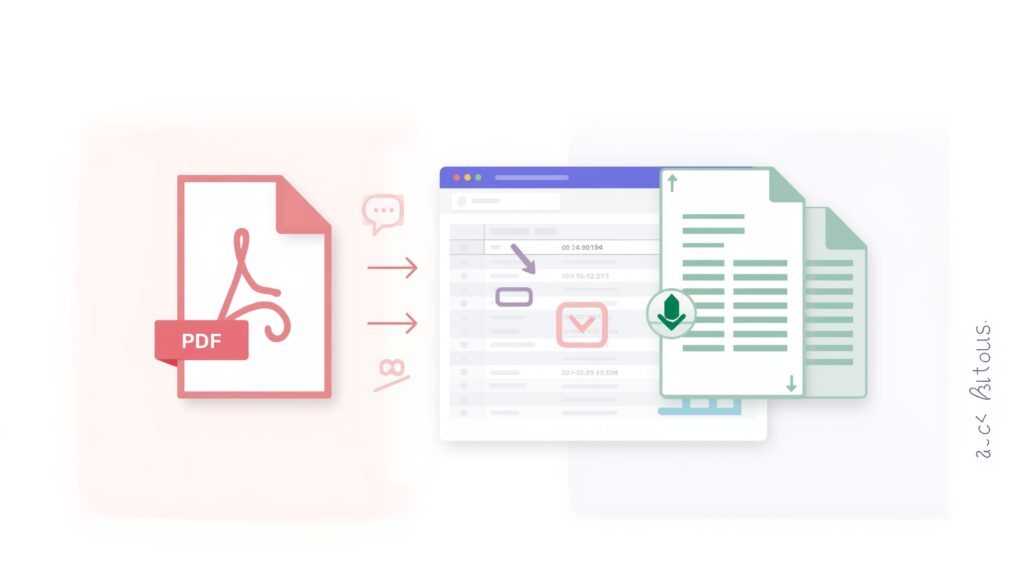
PDF to CSV Converter Free Online Tool
Extract tables from any PDF with perfect accuracy. Drag & drop, instant results, 100% private — your files never leave your browser.
Drag & Drop your PDF
or browse files
Complete Guide to PDF Table Extraction
Understanding PDF Table Challenges
PDF files were designed for visual presentation, not data extraction. Unlike spreadsheets where data is stored in structured cells, PDFs render text as positioned graphics without inherent table structure. This fundamental design creates significant challenges when attempting to extract tabular data. Tables in PDFs lack explicit boundaries—what appears as a neat grid to human eyes is actually just positioned text and lines with no programmatic relationship.
Most PDF to CSV tools fail because they rely on simple text extraction without understanding spatial relationships. They struggle with merged cells, spanning headers, inconsistent spacing, and multi-page tables that continue across page breaks. Our extraction algorithm analyzes character positions, line elements, and visual patterns to reconstruct the logical table structure accurately.
Why Most PDF Converters Produce Poor Results
Simple text extraction methods lose column alignment, merge cells incorrectly, and produce unusable CSV files. They cannot handle rotated text, vertical headers, or complex nested tables. Quality extraction requires sophisticated pattern recognition and spatial analysis—exactly what our tool provides through advanced client-side processing.
Step-by-Step Workflow for Perfect Extraction
-
1
Prepare Your PDF
Ensure your PDF is text-based, not scanned. Text-based PDFs contain selectable text, while scanned documents are essentially images. Our tool works best with text-based PDFs.
-
2
Upload and Preview
Drag your PDF into the converter and review the detected tables. Check that column headers are correctly identified and data rows are properly separated.
-
3
Customize Headers
Click on any column header to rename it before export. This saves time in post-processing and ensures your CSV is immediately usable.
-
4
Export Your Data
Download individual tables as separate CSV files, or merge all tables into one comprehensive export. Copy directly to clipboard for quick paste operations.
Tips for Best Extraction Results
- Use high-quality, text-based PDFs whenever possible
- For scanned documents, run OCR software first
- Split very large PDFs if experiencing slow performance
- Check extracted data for merged cell issues
- Rename column headers before export for clarity
- Use merged export for related tables from same document
Integration with Data Analysis Tools
Once extracted, your CSV files integrate seamlessly with popular data analysis platforms. Import directly into Microsoft Excel for formula-based analysis, load into Google Sheets for collaborative editing, or connect to Power BI and Tableau for advanced visualization. The clean, properly formatted output ensures compatibility across all major spreadsheet and database applications.
For automated workflows, save extracted CSV files to cloud storage and trigger automated processing pipelines. Connect with Python pandas, R data frames, or SQL databases for programmatic analysis. Our consistent output format means you can build reliable data pipelines that process PDF extractions automatically without manual cleaning steps.
Success!
Operation completed